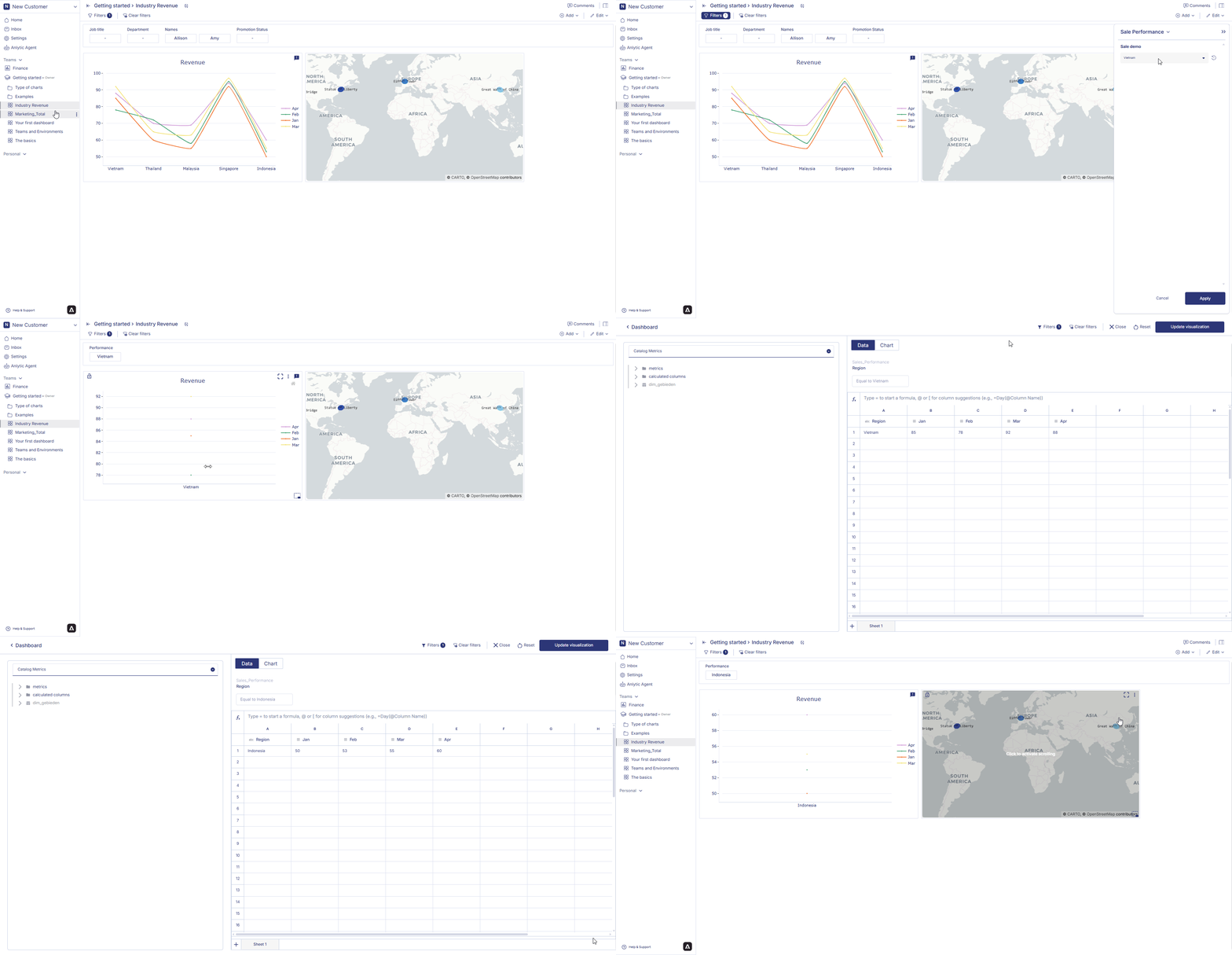
Dashboard Filters
Dashboard Filters allow you to control the data displayed across your entire dashboard.
By applying a filter at the dashboard level, all compatible visualizations update instantly, helping you focus on the exact data you need.
1. Accessing Filter Settings
Before applying filters on the dashboard, ensure that filters have been configured for your workspace.
- Click the workspace name at the top.
- In the dropdown menu, select Settings.
- From the left sidebar, click Filter.
- Choose the catalog you want to apply filters to.
Once deployed, filters become available for use on any dashboard linked to that catalog.
2. Applying a Filter on the Dashboard
Dashboard Filters update all visualizations at once.
- Open your dashboard.
- Click the Filter button in the upper-left corner.
- A dropdown panel will appear with all available filters.
- Select a filter type (e.g., Performance, Region, Category).
- Choose one or multiple filter values.
- Click Apply.
All charts connected to the workbook refresh automatically to reflect the selected filter conditions.
Tip: Dashboard Filters are ideal when comparing the same criteria across multiple visualizations.
3. Applying Filters Inside a Workbook Container
If you want to apply a filter to only one specific visualization:
- Select a visualization container on the dashboard.
- Click Edit to open its chart settings.
- Click the Filter button within the container.
- Select your filter conditions.
- Click Apply.
Only that single visualization will update.